

July 15, 2026 · 17 min read
Tracking Down a Black Gesture Navigation Bar in Flutter Android
A practical investigation into a long-running Flutter Android issue: why common navigation bar fixes work in some projects but not others, and how to reduce the problem to a minimal fix.
The Problem
The black area around Android’s gesture indicator is not something I ran into only recently. It has appeared on and off for years. The frustrating part is not a lack of proposed fixes; it is that there are so many of them, and they work inconsistently.
In a new project, changing the Theme or setting the navigation bar color to transparent may be enough. In a mature project, the same change may do nothing. Flutter, the Android Theme, the Activity, and plugins can all carry their own system bar configuration. You can try several familiar fixes and still end up with a black strip at the bottom.
My usual response had been to add more configuration. I would start with the common Flutter settings:
Future<void> main() async {
  WidgetsFlutterBinding.ensureInitialized();

  await SystemChrome.setEnabledSystemUIMode(SystemUiMode.edgeToEdge);
  SystemChrome.setSystemUIOverlayStyle(
    const SystemUiOverlayStyle(
      statusBarColor: Colors.transparent,
      statusBarIconBrightness: Brightness.dark,
      statusBarBrightness: Brightness.light,
      systemNavigationBarColor: Colors.transparent,
      systemNavigationBarIconBrightness: Brightness.dark,
      systemNavigationBarContrastEnforced: false,
    ),
  );

  runApp(const MyApp());
}
Then I would add the equivalent settings to the Android Theme:
<item name="android:statusBarColor">@android:color/transparent</item>
<item name="android:navigationBarColor">@android:color/transparent</item>
<item name="android:enforceNavigationBarContrast">false</item>
These settings have fixed the issue in some projects. Move to another project, Flutter version, or Android configuration, however, and the result can be completely different. On the Samsung device used for this investigation, running Android 14, every obvious setting was already present. The bottom was still solid black, with only a gray gesture indicator in the middle.
After seeing this happen repeatedly, I stopped believing that one more transparency property was missing. A more likely explanation was that Flutter, the Theme, and native code were all writing to the same Window. A fix might appear to work simply because it happened to write last. Change the project structure or initialization order, and that value gets overwritten.
Instead of layering more fixes onto an old project, I created a clean Flutter Android app and tested each layer separately. The point of this post is not to offer another configuration bundle to copy. It is to understand what each setting controls, which one actually changes the result, and how to find the conflicting code in an existing app.
There was one more small trap. The first test screen used Material’s nearly white default background. A white navigation bar, a pale translucent bar, and a truly transparent bar can look almost identical in a screenshot. It becomes hard to tell whether the bottom is showing the page or a similar color drawn by the system.
I changed the test page to #4C8D88, a blue-green color that is neither black nor white. The three states immediately became distinct:
| State | What the bottom looks like | Is the page background actually visible? |
|---|---|---|
| Opaque black | A solid black region covers the bottom | No |
| Dark translucent | The blue-green shows through a dark overlay | Partially |
| Fully transparent | The same blue-green continues to the physical bottom | Yes |



All three screenshots come from the same device and page. Only the navigation bar handling changes. The important detail is not the gesture indicator itself, but whether the system background around it still covers the page.
Do Not Start With the Color: There Are Three Separate Problems
The small area at the bottom of the screen combines three different concerns:
- Whether the app window extends into the system navigation area.
- Whether the system navigation bar background is transparent.
- Whether the gesture indicator or three-button navigation icons should be light or dark.
They are related, but they are not one switch.
Setting systemNavigationBarColor to transparent only addresses the second concern. If the app never draws behind the navigation bar, there is no page content to reveal. You may still see the Window background, a system contrast layer, or an extra black surface drawn by the vendor’s SystemUI.
A complete edge-to-edge relationship looks like this:
Flutter page background
  -> extends to the physical bottom of the display
  -> system navigation background becomes transparent
  -> gesture indicator is drawn above the page background
Changing the color alone is not enough. Drawing bounds, background transparency, and icon brightness need to be diagnosed separately.
The Investigation
To avoid historical settings and plugins from an older app, I started with a blank Flutter project. I kept the test environment fixed: one Samsung device on Android 14, always using gesture navigation. That made each single-variable comparison meaningful.
In the untouched app, the physical display measured 1080 × 2340, while Flutter’s SurfaceView stopped at 1080 × 2301. The remaining area was occupied by Samsung SystemUI’s NavigationBar0 Surface.
I then enabled only this Flutter setting:
await SystemChrome.setEnabledSystemUIMode(SystemUiMode.edgeToEdge);Flutter’s SurfaceView now expanded to the full 1080 × 2340. SystemUiMode.edgeToEdge had solved the drawing-boundary problem, but the screenshot still showed a black navigation area.
That distinction matters. The page was already being drawn underneath the black layer. The visible black color came from Samsung SystemUI’s NavigationBar Surface, not from Flutter stopping short of the display edge.
Once the responsible layer was clear, I stopped stacking settings and tested Flutter, the Theme, and native code one at a time:
| Test | Result |
|---|---|
Flutter enables only SystemUiMode.edgeToEdge | Surface is full-screen, bottom remains black |
Add windowTranslucentNavigation=true | Black becomes a gray translucent overlay, not true transparency |
| Flutter and Theme declare a transparent navigation bar, without native code | Still black |
| Native layer sets transparency, contrast, and InsetsController | Transparent |
| Remove contrast, InsetsController, Theme settings, and OverlayStyle | Still transparent |
Set transparency only in onCreate | Flutter initialization overwrites it and black returns |
Set transparency in onWindowFocusChanged | Stays transparent |
After removing everything that did not affect the outcome, only two actions remained: Flutter extends its Surface to the bottom, and the native layer writes a transparent navigation bar color after the Window gains focus.
Black, Translucent, and Transparent Are Three Different States
One useful outcome of the investigation was realizing that the result is not simply fixed or broken. There is a third, translucent state that is easy to misread.
Opaque Black
Even with Flutter in edge-to-edge mode, a black NavigationBar Surface from Samsung SystemUI will cover the page. From SurfaceFlinger, Flutter is already full-screen; the black comes from the system layer above it.
Dark Translucent
A commonly suggested Theme configuration is:
<item name="android:windowTranslucentNavigation">true</item>
<item name="android:navigationBarColor">@android:color/transparent</item>
On this Samsung Android 14 device, it does have an effect: the solid black area becomes a dark translucent overlay. The blue-green background shows through, but the bottom remains visibly darker than the rest of the page.
On a white test page, that pale or dark gray region is easy to mistake for transparency. The blue-green background makes the overlay obvious.
windowTranslucentNavigation is better understood as an older translucent navigation capability. It can improve a solid black bar, but it is not the same as a fully transparent gesture navigation bar in a modern edge-to-edge layout.
Fully Transparent
With full transparency, the same blue-green page background continues to the physical bottom and the gesture indicator is drawn directly above it. There should be no separate black, gray, or dark blue-green band.
This is why I now verify transparency with a clearly non-black, non-white color, a gradient, or an image. The test needs to prove that the page itself is visible underneath.
Why Both Changes Are Required
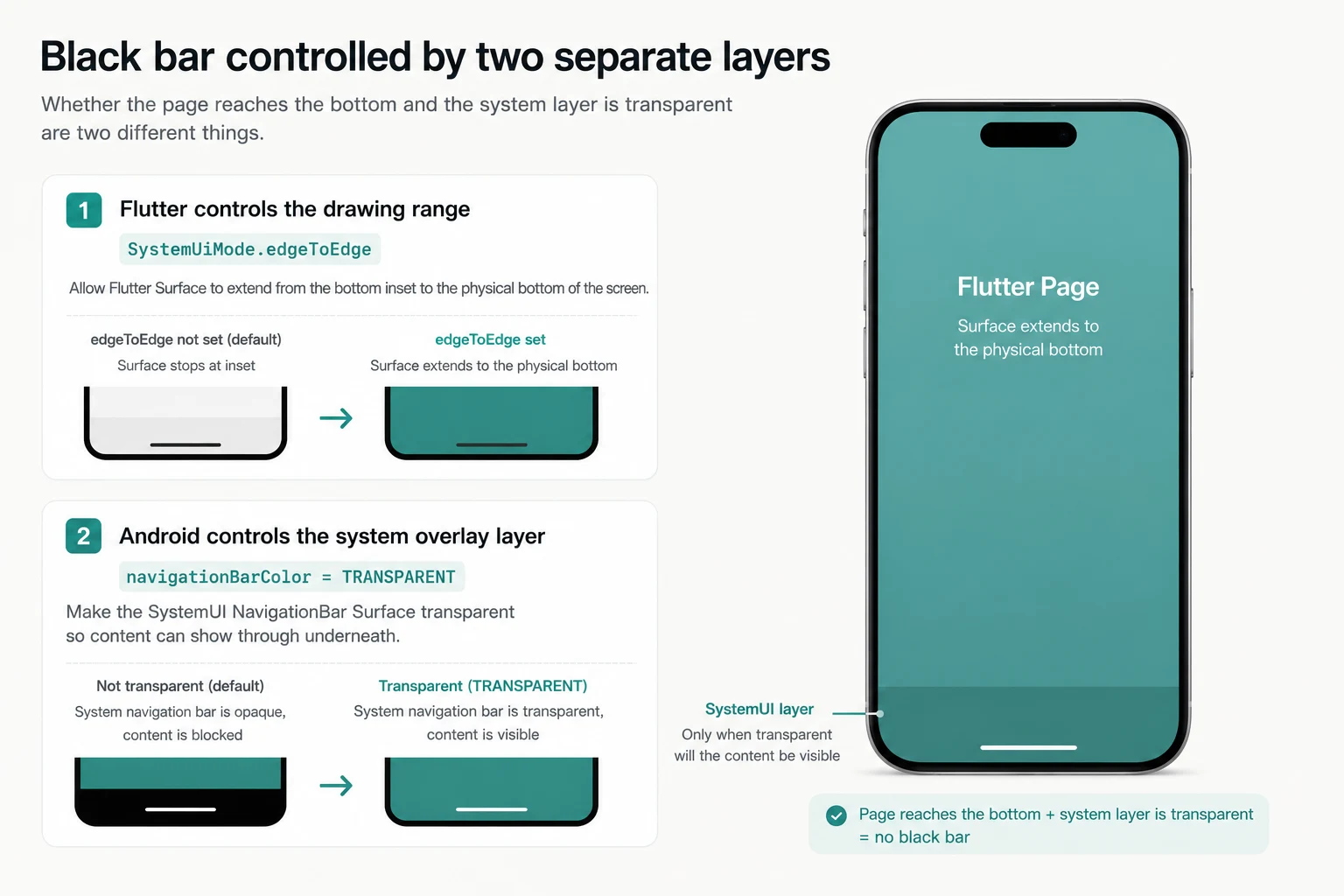
What Each Layer Controls
The issue is confusing because drawing bounds and system bar color are controlled by different layers.
Flutter’s SystemUiMode.edgeToEdge prevents the Flutter Surface from stopping before the bottom inset. Without it, a transparent navigation bar has no Flutter content underneath to reveal.
Android’s Window.navigationBarColor tells SystemUI what background color to use. On this Samsung device, the transparent value written during Flutter startup was not the final value; the NavigationBar Surface still ended up black.
The split is easier to see like this:
SystemUiMode.edgeToEdge
  -> Flutter Surface extends to the physical bottom

window.navigationBarColor = Color.TRANSPARENT
  -> Samsung SystemUI's NavigationBar Surface becomes transparent
The first determines whether content exists underneath. The second determines whether the system layer above it is transparent. Both are necessary.
Why the Color Must Be Set After the Window Gains Focus
Putting the same line in MainActivity.onCreate() left the bottom black. Moving it to onWindowFocusChanged() made transparency stable. This was not about Kotlin taking precedence over Dart; it was about which write happened last.
Flutter engine initialization, Activity theme changes, and system UI synchronization can all modify the Window after onCreate(). Writing the color when the Window gains focus makes it the final value for the current page:
override fun onWindowFocusChanged(hasFocus: Boolean) {
    super.onWindowFocusChanged(hasFocus)
    if (hasFocus) {
        window.navigationBarColor = Color.TRANSPARENT
    }
}
There is an important boundary around this result: it comes from the current Flutter version and this Samsung Android 14 device. On another OS version or vendor build, start with the platform’s standard edge-to-edge behavior before adding vendor compatibility code.
The Approach Changes Across Android Versions
Android’s edge-to-edge behavior has changed substantially in recent releases. Code that made sense on Android 9 should not automatically follow an app into Android 15 or 16.
| Android version | Recommended approach |
|---|---|
| Android 16+, target SDK 36+ | Edge-to-edge is enforced and cannot be disabled; focus on WindowInsets |
| Android 15, target SDK 35+ | Edge-to-edge is enabled by default and gesture navigation is transparent; keep interactive content out of system bar areas |
| Android 10–14 | Enable edge-to-edge; if vendor SystemUI still draws black, rewrite the transparent navigation color after Window focus |
| Android 5–9 | Use transparent navigation colors and legacy window layout flags as needed; behavior varies by vendor and navigation mode |
| Legacy systems such as Android 4.4 | Consider windowTranslucentNavigation only when the project still supports these versions |
Android 15 and Android 16
On Android 15, apps targeting SDK 35 use edge-to-edge by default. The gesture navigation bar is transparent and content is drawn behind system bars.
Android 16 with target SDK 36 removes the ability to opt out. Rather than trying to restore the old bottom safe strip, handle Insets correctly: backgrounds may extend to the edge, while buttons, inputs, and other interactive elements stay clear of the gesture region.
Flutter 3.27 started targeting Android 15 by default. Even if a project does not explicitly set targetSdkVersion, check what the current Flutter SDK produces instead of relying on an older project’s assumptions.
Android 10 Through Android 14
These versions do not enable edge-to-edge automatically in every combination. Before changing any color, make sure the Flutter Surface reaches the bottom:
await SystemChrome.setEnabledSystemUIMode(SystemUiMode.edgeToEdge);If the Surface is full-screen but the target device still shows a black gesture area, write the transparent color after Window focus:
override fun onWindowFocusChanged(hasFocus: Boolean) {
    super.onWindowFocusChanged(hasFocus)
    if (hasFocus) {
        window.navigationBarColor = Color.TRANSPARENT
    }
}
Three-button navigation is a separate concern. Evaluate isNavigationBarContrastEnforced only when its translucent contrast layer conflicts with the design; do not treat it as the cause of a gesture-navigation black bar.
Android 9 and Earlier
Older solutions often add these Theme properties:
<item name="android:windowTranslucentNavigation">true</item>
<item name="android:navigationBarColor">@android:color/transparent</item>
They work on some older systems, but belong to an earlier approach to transparent windows. For new projects on Android 10 and later, I prefer edge-to-edge and WindowInsets rather than making windowTranslucentNavigation the main solution.
If the minimum Android version is already 10, the property can be omitted. If the project still supports Android 4.4 or 5.0, keep it in version-specific resources as a fallback and verify both three-button navigation and vendor behavior on real devices.
Minimal Fix for a New Flutter Android App
For a newly created Flutter app that reproduces the black bar on an Android 10–14 target device, start with only two changes. One extends Flutter to the bottom; the other makes the system navigation layer transparent.
In lib/main.dart, enable edge-to-edge before running the app:
import 'package:flutter/material.dart';
import 'package:flutter/services.dart';

Future<void> main() async {
  WidgetsFlutterBinding.ensureInitialized();
  await SystemChrome.setEnabledSystemUIMode(SystemUiMode.edgeToEdge);
  runApp(const MyApp());
}
Then, in android/app/src/main/kotlin/.../MainActivity.kt, write the transparent color after the Window gains focus:
package com.example.app

import android.graphics.Color
import io.flutter.embedding.android.FlutterActivity

class MainActivity : FlutterActivity() {
    override fun onWindowFocusChanged(hasFocus: Boolean) {
        super.onWindowFocusChanged(hasFocus)
        if (hasFocus) {
            window.navigationBarColor = Color.TRANSPARENT
        }
    }
}
Reinstall the app on a real device and use a clearly non-black, non-white test background. On the Samsung Android 14 device used here, Theme changes, windowTranslucentNavigation, immersive flags, WindowInsetsController, and the navigation contrast switch were not required.
This does not mean every new app should copy the native compatibility code. Current Flutter and target SDK defaults may already handle edge-to-edge, and the target device may not have the SystemUI override. Both changes are needed only after the black bar is reproduced on Android 10–14.
The minimal fix addresses background drawing, not content safety. If the bottom contains buttons, inputs, or a custom tab bar, still use MediaQuery.viewPaddingOf(context).bottom or SafeArea to keep interactive content clear.
What to Keep in a Complete Implementation
The minimal fix removes the black bar, but a real app may still need to handle launch transitions, icon brightness, and the position of bottom controls. Each setting has a purpose; they should not be bundled together and credited collectively when the page happens to become transparent.
Flutter Layer
Keep SystemUiMode.edgeToEdge from the minimal fix. SystemUiOverlayStyle can control status bar and gesture indicator brightness, but it is not what removes the black background. Configure it for the current page only when needed.
Android Theme
The Theme remains useful for the initial system bar appearance:
<style name="NormalTheme" parent="@android:style/Theme.Light.NoTitleBar">
    <item name="android:windowBackground">?android:colorBackground</item>
    <item name="android:statusBarColor">@android:color/transparent</item>
    <item name="android:navigationBarColor">@android:color/transparent</item>
    <item name="android:windowLightStatusBar">true</item>
    <item name="android:windowLightNavigationBar">true</item>
    <item name="android:enforceNavigationBarContrast">false</item>
</style>
Removing all of these system bar properties from the light and dark Themes did not change the final transparent result in this test. They can improve the launch transition and default icon appearance, but they were not the key Samsung fix.
Choose windowLightStatusBar and windowLightNavigationBar based on the page’s actual background. A device using dark mode does not guarantee that every current page is dark.
Native Android Compatibility
Use the onWindowFocusChanged() code from the minimal fix only where it is needed. navigationBarColor is becoming less relevant on newer Android versions: Android 15 with target SDK 35 uses transparent gesture navigation by default, while Android 16 with target SDK 36 enforces edge-to-edge. This line remains only to cover an Android 14 vendor behavior reproduced on a real device.
If the app targets only newer systems with enforced edge-to-edge, or the target devices do not exhibit the override, there is no reason to add it.
Do Not Forget Insets
The background can extend into the gesture area; buttons should not sink into it.
For a custom bottom bar, let the container background reach the edge while adding safe spacing inside the content:
Widget buildBottomBar(BuildContext context) {
  final bottomInset = MediaQuery.viewPaddingOf(context).bottom;

  return ColoredBox(
    color: Theme.of(context).colorScheme.surface,
    child: Padding(
      padding: EdgeInsets.only(bottom: bottomInset),
      child: const AppBottomNavigation(),
    ),
  );
}
List backgrounds and decorative elements may draw behind the system bar. Bottom buttons, inputs, and floating actions should preserve the corresponding safe distance.
Quick Troubleshooting Checklist for an Existing App
In an existing app, the Theme, plugins, Activity base classes, and old immersive code may all modify the Window. Copying the two new-project changes may not be enough. Walking through these checks in order is usually faster:
| Done | Check | Passing condition | If it fails, inspect this first |
|---|---|---|---|
| □ 1 | Record device vendor, Android version, navigation mode, and actual targetSdkVersion | Every later test uses the same environment | Fix the device and navigation mode; do not mix gesture and three-button results |
| □ 2 | Change the test page to a clearly non-black, non-white color | Black, translucent, and page color are easy to distinguish | Establish a visual baseline before judging transparency |
| □ 3 | Fully stop and cold-start the app twice | Both runs match, with a before-fix screenshot saved | Hot reload does not reproduce Theme and Window initialization |
| □ 4 | Compare physical display height with Flutter Surface height | Flutter draws to the physical bottom | Inspect edge-to-edge, setDecorFitsSystemWindows, Activity base classes, and old layout flags before colors |
| □ 5 | Search every system bar configuration entry point | All Dart, Theme, native, and plugin writes are listed | Search SystemChrome, navigationBarColor, windowTranslucentNavigation, WindowCompat, WindowInsetsController, and systemUiVisibility |
| □ 6 | Keep edge-to-edge and A/B-test every other setting | Each run changes one property or one lifecycle point, followed by a full restart | Multiple simultaneous edits hide the setting that actually works |
| □ 7 | Test transparency in Theme, onCreate(), and onWindowFocusChanged() | The last effective write is identified | If focus works and onCreate() does not, later initialization is probably overwriting it |
| □ 8 | Background and foreground the app; open and close permissions and keyboard | The expected navigation appearance remains | Inspect lifecycle callbacks, page restoration, and plugins that reapply system UI styles |
| □ 9 | Retest target OS versions and both navigation modes | Gesture and three-button modes match the design, with controls unobstructed | On Android 15/16 inspect Insets first; on 10–14 inspect vendor SystemUI; use versioned resources for older systems |
After these nine checks, the problem usually falls into one of four groups:
| Symptom | First area to inspect |
|---|---|
| Page does not reach the physical bottom | Edge-to-edge, layout flags, setDecorFitsSystemWindows |
| Page is full-screen but navigation area is black | Final navigation color, vendor SystemUI, write timing |
| Page is visible under a dark overlay | windowTranslucentNavigation, navigation contrast layer, three-button policy |
| Launch is correct but backgrounding or a dialog restores black | Lifecycle callbacks, plugins, or page-restoration system UI writes |
Identify the group before adding a minimal fix. If windowTranslucentNavigation only produces a dark overlay, record it as translucent rather than fixed. Changing Dart, Theme, and native code at once may produce transparency, but it will not tell you which setting mattered.
Why These Common Attempts Did Not Solve It
Setting Only a Transparent Color
systemNavigationBarColor: Colors.transparentThis line says that the navigation background should be transparent. It does not guarantee that Flutter draws into the navigation area, and an early Flutter write can still be overwritten by later Window initialization.
Treating Translucent as Transparent
windowTranslucentNavigation can improve the appearance of some older devices, but it does not replace edge-to-edge and WindowInsets on Android 10–16. On this Samsung Android 14 device, it changed solid black into a dark translucent overlay. The page showed through, but a system layer remained above it.
The property was not ignored; it simply achieved a different result from full transparency.
Enabling Every Immersive Flag
LAYOUT_FULLSCREEN, FULLSCREEN, HIDE_NAVIGATION, and IMMERSIVE_STICKY have different meanings. Enabling all of them to remove a bottom bar may also hide the status bar or system navigation and create new interaction problems.
The final single-variable result required none of these immersive flags, so I did not keep them.
Ignoring Three-Button Navigation
Gesture and three-button navigation use different visual policies. Android 15 makes the gesture navigation bar transparent by default, while three-button navigation often keeps a translucent contrast layer. Whether to disable isNavigationBarContrastEnforced depends on the page background and button visibility, not on a gesture-navigation screenshot alone.
Regression Checklist After the Fix
A static screenshot can look correct while the problem returns after a lifecycle event or navigation-mode change. Before release, I would cover at least:
- Cold and warm app launches.
- Backgrounding and foregrounding the app.
- Opening and closing a system permission dialog.
- Showing and hiding the keyboard.
- Light and dark pages.
- Gesture and three-button navigation.
- Android 14, Android 15, and the newest system relevant to the current target SDK.
- At least one Pixel or near-stock device and one vendor device common among target users.
- A clearly non-black, non-white background to prove that the bottom is showing page content rather than a similar system-generated color.
To confirm which setting works, return to A/B testing: use the same device and conditions, change one property or lifecycle point at a time, and compare screenshots, Surface dimensions, and Window state.
Summary
What looked like a color problem turned out to involve three layers: the Flutter Surface, Android Window, and vendor SystemUI.
Four conclusions were most useful to me:
SystemUiMode.edgeToEdgeonly extends Flutter to the bottom. On this Samsung Android 14 device, the black background itself came from the separateNavigationBar0Surface.- Opaque black, translucent, and fully transparent are distinct states. A white test page makes the latter two easy to confuse.
- The single-variable tests pointed to timing:
navigationBarColor = Color.TRANSPARENTwas overwritten inonCreate(), but remained stable when written after Window focus. - Android 15 and 16 move toward default or enforced edge-to-edge. New systems are mainly about Insets;
windowTranslucentNavigationbelongs in a legacy fallback.
The most reusable lesson was not another line of native code. It was to stop adding transparency properties blindly: first verify that the page reaches the bottom, then identify which layer draws the visible color, and finally isolate the property and lifecycle timing that change it.